
Android App FAQ #
Device specific requirements
Android Troubleshooting Checklist
Time counting incorrect
Synchronization issues
Multi-user support
Does the app always need Internet?
System time error?
Necessary device rights
GPS/location problems?
FCM-Token error
Always allow certain apps
Setup Issue: Restricted Setting
Problems with Push Notifications
Parent App no longer asks for the password
Device specific requirements #
Some manufacturers and models have device-specific settings. These settings must be made to ensure that the Child Control App works correctly! Please click one of the following manufacturer links to learn more. Depending on the model and Android version, names (menu items) may vary.
Blackview
Huawei (Honor)
Motorola
Poco (Xiaomi brand)
Redmi (Xiaomi brand)
Samsung
Ulefone
Xiaomi
ZTE
Other manufacturers
Android Troubleshooting Checklist #
If the Child Control App does not comply with time limits correctly or does not work as expected, the following checklist will help you find the problem:
Please take the child device yourself and start the Child Control App. Is the counted time for today displayed correctly? (Screenshot) It is important that you check this yourself (i.e., in person!) on the child’s device to rule out possible manipulation or malfunctions.
Check directly on the child’s device whether the date and time are set correctly. A correct date is required for the Child Control App to function correctly. In case of manipulation you should block the settings and activate the manipulation protection (see chapter settings). Also check on the device whether there is enough free memory available. On many devices there is also an item “Device maintenance” under the app settings, which can delete unnecessary files. If there is very little memory (less than 500 MB) left on the device, delete individual apps. The entire Android system always needs some free memory to work properly.
Check the child device for active battery-saving programs. Recently, battery-saving programs have been one of the main reasons for “dropouts” of the Child Control App. Manufacturers of phones and tablets increasingly deliver radical battery-saving defaults. You must ensure that the Child Control App is excluded from these programs. The settings vary by device. Most of the time you will find a list of apps under the Battery menu where you can allow an app to always run in standby or assign special settings. See also manufacturer-specific adjustments: Huawei/Honor, Samsung, Xiaomi (also Redmi and Poco) as well as Motorola, ZTE, Blackview and Ulefone.
Check if synchronization from the Web Portal works. Open the Web Portal and block any app (select app under Apps and set to Blocked). Is this block applied on the child device after 2-3 minutes? Check whether the device also reacts correctly to a short test limit. To do this, set a short daily limit in the Web Portal under Total Limit and check the display directly on the child device after a sync. Is the remaining time displayed correctly? (Screenshot) If this does not work, please uninstall the app and then reload it from our Download page. For how to save existing settings, please refer to the Uninstallation chapter.
Finally, restart the device and check if blocked apps are still blocked and the total time in the app increases correctly every minute. This is the only way to make sure that a battery-saving program from 3) does not block the app again.
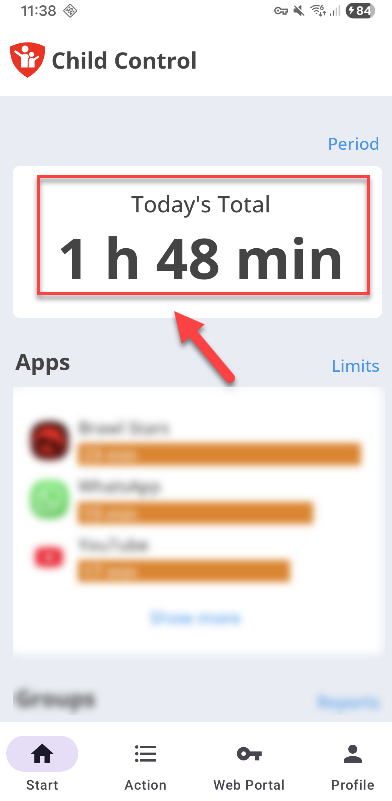
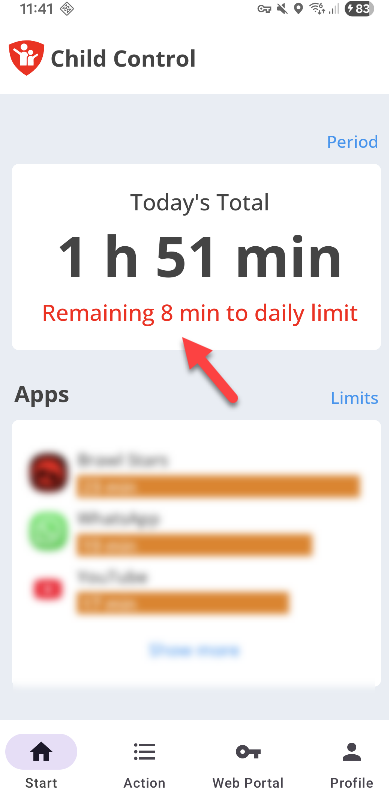
If the app used to work correctly and now suddenly doesn’t, uninstalling and reinstalling it may help. In this case, however, it is important that the app is uninstalled correctly before reinstalling. Please refer to the Uninstallation chapter for instructions (where you can also learn how to save your settings).
Our customer service is of course available to answer any further questions you may have. When contacting us, please specify the child device (model/manufacturer) and the Android version you are using.
Time counting incorrect #
There are several ways to count the times on Android. Android itself provides an interface, but it does not always provide correct data. For this reason, we currently still rely on our own counting method: We check the current foreground app every 10 seconds. If this app is still the same as 10 seconds ago, we increase the app count by the mentioned 10 seconds.
In the following cases no time is counted:
- the screen of the device is switched off
- the device is on the lock screen
- an always allowed or bonus app with the option counter STOP is running
Counted too much time? The app also counts the time when the device is only (unlocked) on the home screen and there is no app currently in the foreground. There have also been individual cases where notifications from an app caused miscounts. If it only affects one specific app at a time, you could try to disable notifications for that app.
Not enough time counted? In some cases Child Control counts less time than the child actually spent on the device.
Background: on Android devices, Child Control works as a background service that runs independently of the currently selected app and counts the times. Unlike on Windows, however, the Android operating system can pause such services at any time. This happens above all when another app is using a lot of memory or CPU and the device is about to crash - often the case with very graphics-intensive games.
Unfortunately there is no real antidote, other than using a more powerful device. Android resumes the service by itself as soon as the critical system state is over, and from that point on the time is counted again. Against this background it is quite possible that a game is counted as shorter than it actually ran.
Synchronization issues #
Does the manual sync from the Web Portal not work? Does the phone no longer synchronize automatically? Is the date of the last sync “too old”? Check directly on the child device to see if the parental control app is still installed. Check if the device has an Internet connection and tap the “Manual Sync” button in the app:
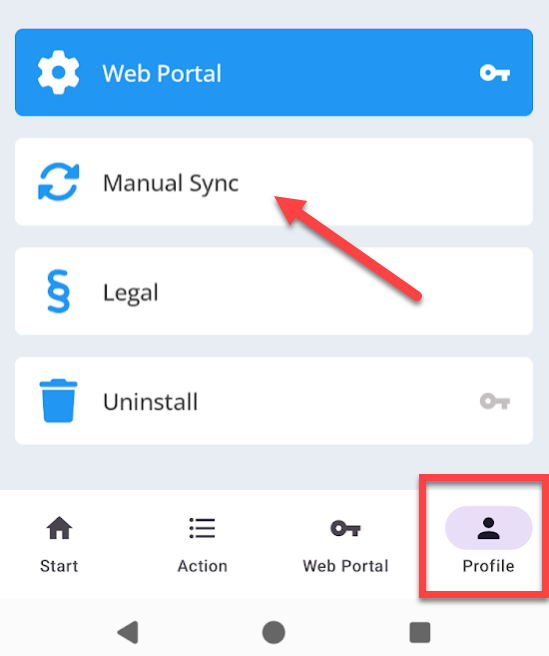
Can a synchronization be triggered this way? If it works, check if there is enough memory left on the device and delete unneeded apps or other files if necessary. If nothing works, you can and should uninstall the app once and then reinstall it.
Multi-User Support #
Starting with Android version 5.x it is possible to manage multiple users. However, this function is not supported by all device manufacturers. If you can and want to use multiple users on one device, please note the following instructions: The app must be installed and set up separately on each user account. When setting up the app, assign a meaningful device name such as “Samsung Max”, “Samsung Paula” instead of just “Samsung Tablet”. This makes it easier to distinguish devices later in the Web Portal. In the Web Portal, individual users are treated like different devices. As with Windows Child Control, only one license is required per device.
Please note that Child Control blocks user switching by default. In the Web Portal under Settings > Security Mobile Device, set the option Lock settings to “None” if you want to manage different users.
If the app is bypassed by creating new users or by using the guest user, the following procedure very often helps, though not on all devices:
- From the main account, often called “owner”, create a new user account for the child.
- Secure the main account with a password known only to you.
- From now on the child uses the newly created account - only the main account has the right to create additional accounts.
On some devices the user can be switched directly from the notification bar. You can usually disable this in the device settings.
If you are about to buy a new smartphone, you can avoid the multi-user problem altogether by choosing a manufacturer that does not offer user management. That is the case with almost all Samsung devices, for example.
Does the app always need Internet? #
Child Control settings are made centrally via our Web Portal. But what happens if the child device has no internet, for example because flight mode is on or there is no Wi-Fi?
In that case all limits set so far are still enforced on the device. The app uses a database directly on the device that works independently of an internet connection. Only later changes and the transfer of the usage logs to the Web Portal need a connection again.
No data is lost in the meantime: as soon as the child device is back online, all data since the last sync is transferred to the Web Portal, and any changes to the limits are transferred from the Web Portal to the device.
Whether and when data was last exchanged between the device and the Web Portal can be seen directly in the Web Portal on the start page and under Synchronisation (Sync) > Time last sync.
In this context, please note the special case of the daily e-mail report. An example: the child phone is used for one hour until 17:00 today. From 17:00 on, the child switches on flight mode, plays for another hour and then puts the phone away.
Because of flight mode, the Web Portal only knows the count until 17:00. The e-mail report goes out the next morning and shows one hour. As soon as the phone has an internet connection again, the time after 17:00 is added and the totals increase accordingly.
You can keep working in this situation too: important functions such as “OFF UNTIL”, “LOCK UNTIL”, an extension or the uninstall are carried out with your password directly on the child’s device, even when neither you nor the device is currently online. What is possible and what you need to watch out for is described in the chapter Without Internet.
System time incorrect? #
The Child Control app depends on the date and time as well as the time zone being set correctly on the child device. This is necessary to ensure that time limits function correctly and that lockout periods are observed. Manipulating the date is a popular trick for kids to circumvent the app. If Child Control detects a “wrong” system date or time, a corresponding warning message is displayed in the Web Portal:
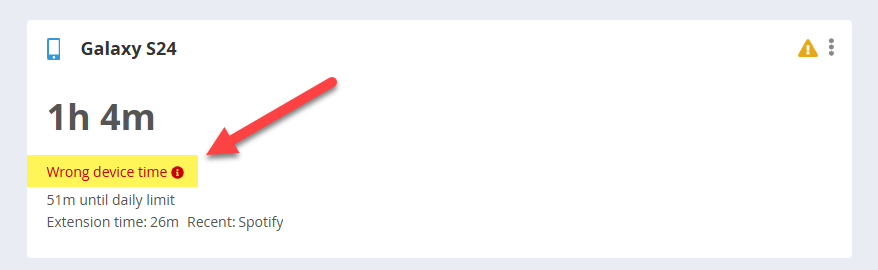
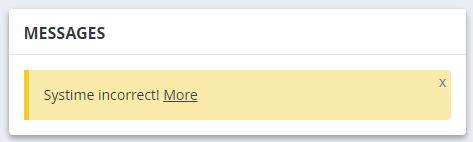
If “Suspected Manipulation” (see chapter Security) is activated, the child device will be blocked completely for the given time. It can only be unblocked with the parent password or via the Web Portal. Even if changes to the date are 90% due to the kids: bad batteries and defective hardware can in some cases lead to a malfunction of the system time.
On Android devices, the app protects against changing the system time when the user interface is activated. Unfortunately this protection does not work 100% on all devices. You can lock the settings to fix this problem. Remember that an incorrect system time can lead to strange reports, possibly even in the future (if the date has been set forward). We recommend reset times if the system date is wrong. The Reset times feature is available in the Reports section.
Android device rights #
Find all information about device rights (and their problems) in chapter Required Android Rights.
GPS/location problems #
If locating the device fails repeatedly although the mobile device is switched on and online, please check the different permissions for the standard query directly on the mobile device. The procedure for subsequent activation of the GPS function can be found in chapter GPS (Android).
Inaccurate location?
If the location is permanently off by a few hundred meters to a few kilometers, the following
procedure has helped other customers: Take the child’s device and open Settings > Apps >
Child Control > Permissions > Location. Deactivate location permission for Child Control and
then re-enable it. Check if the location is more accurate then.
FCM-Token error #
The FCM-Token (Firebase Cloud Messaging), also known as a Google ID for Android, is a special identifier generated for each device and app during installation. It allows our Web Portal to send real-time notifications to your mobile device, even while it is in standby mode. The token is only available on devices linked to a Google account.
In the Child Control app we use the FCM-Token for GPS queries and to trigger immediate synchronizations when you change your settings. If it is unavailable, GPS queries will not work. Synchronization of changed settings still happens without the token, as soon as you use or power on the device.
If the Web Portal reports an error related to the FCM-Token, uninstalling and reinstalling the app may resolve it. Also check whether Google Play Services are up to date. Please be aware that FCM is not available on devices without a Google account, such as Amazon devices.
Setup Issue: Restricted Setting #
The following problem can occur when activating permissions such as Accessibility Services on newer versions of Android:
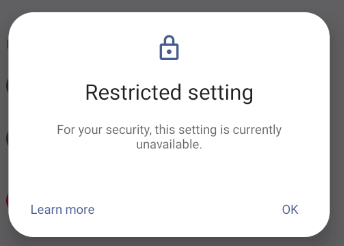
The Android permission for Accessibility Services is needed in Child Control to read the current URL of the web browser for the web filter and potentially block a webpage. It also protects manipulation-critical areas (e.g., adjusting the clock). Since Accessibility Services can be misused by apps, Google has introduced this security feature in newer Android versions. You can solve the problem as follows:
- Press the Android back button (several times) to return to the setup of Child Control. Skip activating the Accessibility Services for now and complete the installation.
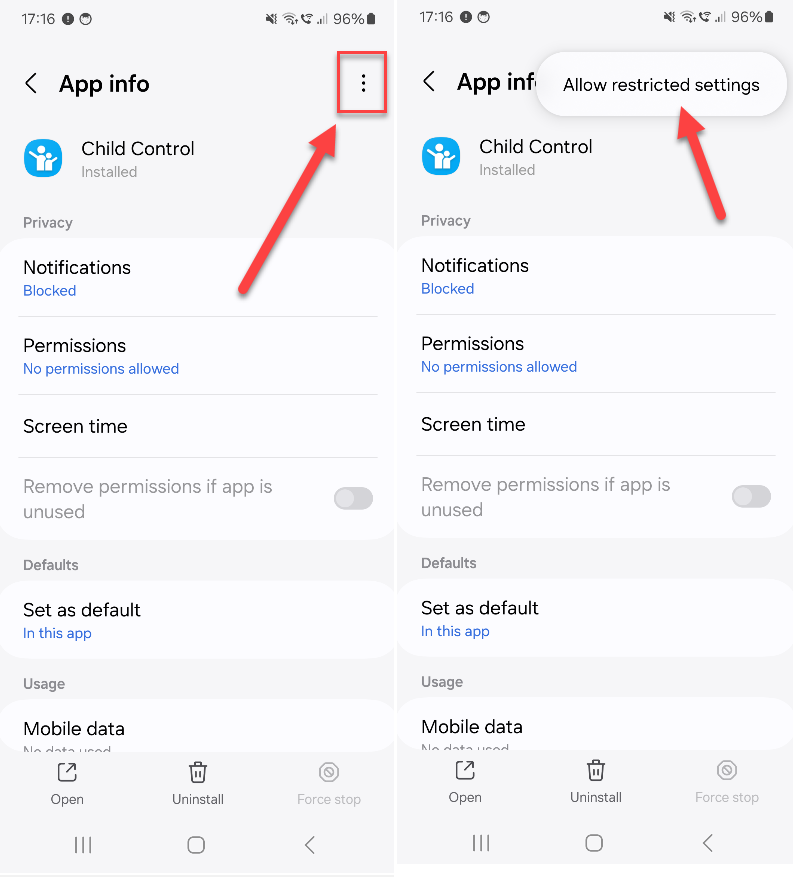
- On the child’s device, go to Settings > Apps > Child Control. Tap the three dots at the top right and choose “Allow restricted settings” (see the screenshot below).
- Switch back to the Child Control app, scroll all the way down and press the Required Permissions button.
The Accessibility Services for Child Control should now be activatable. The screenshot is from a Samsung device; the layout may vary on other devices. If you run into problems, our support is happy to help.
Always allow certain apps #
You can always allow certain apps in Child Control (even if the time has already expired). You can also specify apps where the total counter stops. It is also possible to set bonus times for certain desired apps (e.g., learning programs). The necessary settings for this can be found in the section Apps > Allowed Plus.
Special case: audio apps (e.g., Spotify)
Audio apps are a special case in terms of time counting, because the app in question does not
necessarily have to be in the foreground. Audio playback can also be controlled from the Android
notification bar or the lock screen, and it is technically not possible for us to detect that.
If audio playback is running and the device total limit - or a device block time - is reached, the playback stops. It can be restarted manually, but should stop again automatically after 10 seconds at the latest. This only works with a total limit, not with an individual app limit on the music app.
If you do not want the sound to stop when the limit expires, choose the corresponding setting under Settings > Options Android. A time limit on the audio app itself, while it runs in the background, is unfortunately not possible.
Problems with Push Notifications? #
Push notifications can be used in the Child Control parent app to inform you about incoming unblock or extension requests from the child device. In the child version, push notifications can be used to display alerts as small notifications instead of full-screen warnings (“2 minutes remaining”) (configurable in Web Portal > Settings > Options Android.
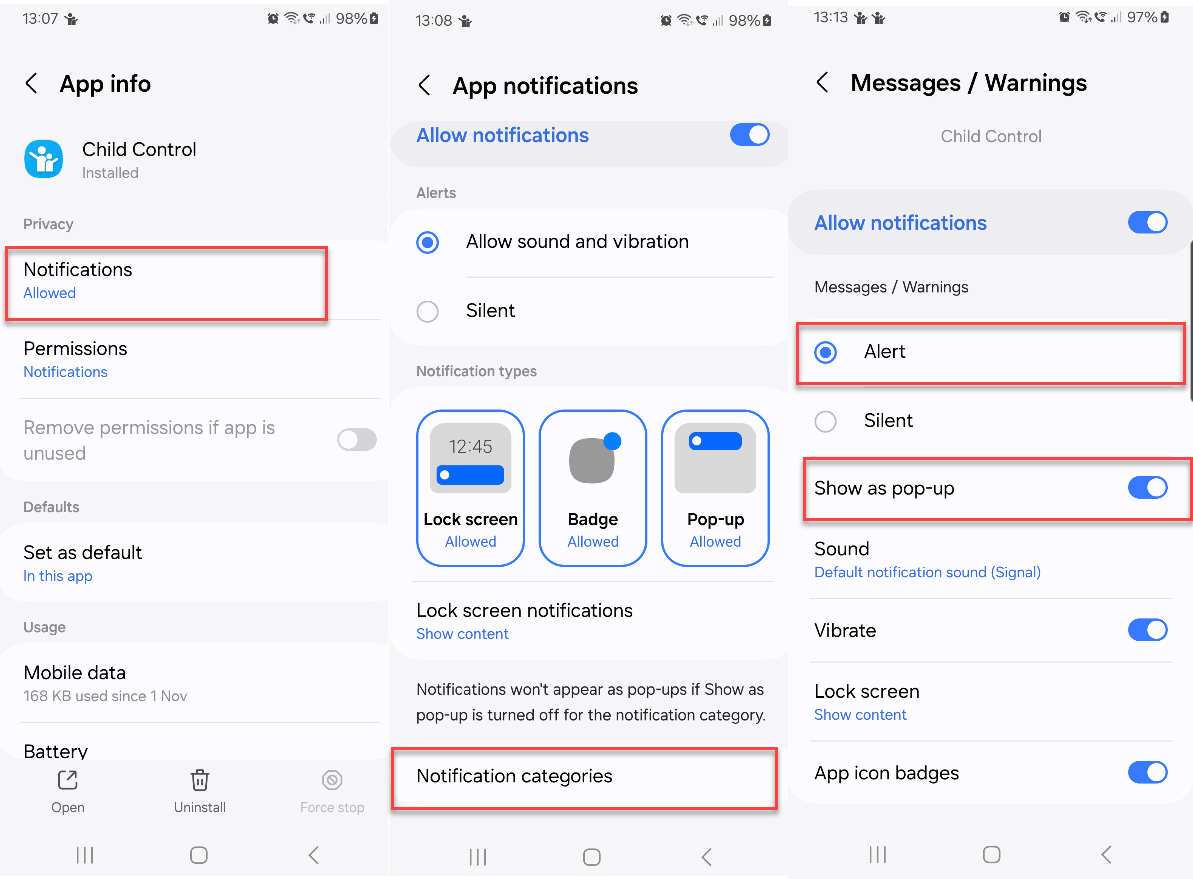
IMPORTANT: In recent Android versions, it is no longer sufficient to simply allow notifications for the Child Control app. You also need to explicitly enable “Show as pop-up” in the notification category and change the option from “Silent” to “Alert”. In the child version, there are two notification categories, which you can display or hide separately. The following screenshot is from a Samsung device; on devices from other manufacturers, the terms may differ.
Parent App no longer asks for the password #
If you ticked Save password when logging in to the Parent App, the app now starts straight into the device overview - the login screen with the checkbox no longer appears. Log out once via the three-dot menu > Logout, and the app will ask for your password again the next time you start it. For details, see the chapter Parent App.