Security Checklist FAQ #
Why is it even manipulable?
Checklist for Samsung devices
Checklist for other devices
Why is it even manipulable? #
The security architecture of Android does not allow apps deep access to the system. While this is a good thing for protection against viruses and malware, it is rather limiting for our Child Control app.
For example, the app cannot hide icons on the home screen, fully stop apps from running or prevent them from starting. All it can do is read the currently open foreground app, check whether a limit exists and then place our block screen over that app.
This naturally makes the app vulnerable to various forms of manipulation, and its security also depends heavily on the type and manufacturer of the device. The following checklist gives you an overview of what to do if you suspect manipulation.
Checklist for Samsung devices #
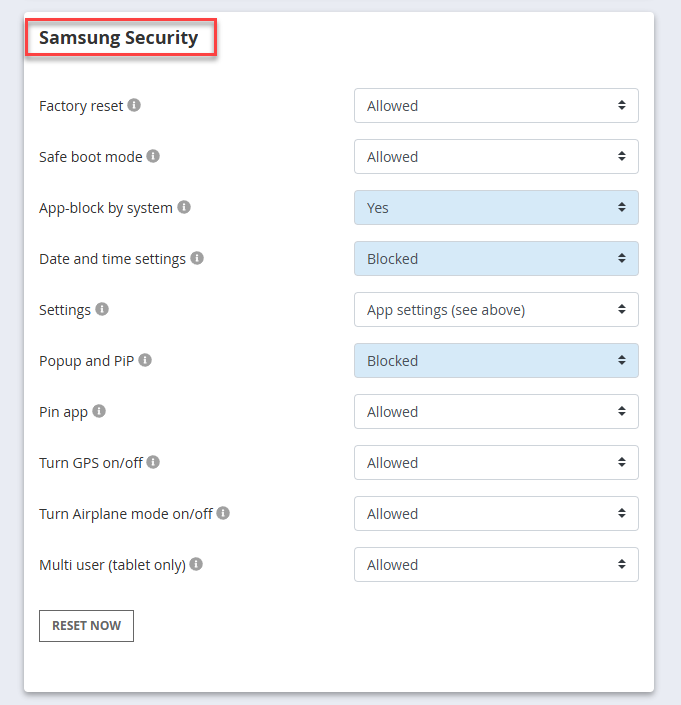
On Samsung devices from Android 10 onwards, some functions can be blocked directly at the operating system level, which lets you prevent manipulation in a targeted manner. All settings for this are under Web Portal > Security > Samsung Security.
When activating a Samsung Security setting for the first time, you may need to update the permissions on the child device: a red Required Permissions button appears at the bottom of the app there. Select it to enable Samsung Security once.
From then on, we particularly recommend the following restrictions:
Block popups (suggested)
App content can be displayed as a “small window” over other apps. For example, YouTube can run
as a small window over an always-allowed (Allowed-PLUS) app. In the reports, you would then only
see the use of the actually allowed app. Set the option for Popup/Picture-in-Picture to “Blocked”
to prevent this small window display. The restriction is applied directly at the Samsung system
level, meaning that when this option is enabled, apps can no longer enter popup mode.
App block by system (suggested)
Select the “YES” setting to have apps blocked at the Samsung system level when an app or device
limit has expired. This setting is also recommended if there is a suspicion of manipulation (e.g.,
via always-allowed apps).
Date and time settings (suggested)
The Child Control app relies on the correct system time. Without the correct time or date, times
cannot be recorded accurately, and limits cannot be maintained. Enable this setting to prevent
any changes to the date. Before enabling this setting, please ensure that the date and time are
correct on the child device.
Factory reset (partly suggested)
When set to “Blocked,” a reset to factory settings is no longer possible. This restriction remains in place even in safe mode.
Safe boot mode (partly suggested)
When set to “Blocked,” safe mode can no longer be accessed. In rare cases, this may prevent the device from being started in the event of an error.
Settings (partly suggested)
This option allows you to fully lock the device’s settings or settings app at OS level. We
recommend this option only if permissions have been removed or are missing on Samsung devices.
Please note that when settings are locked, other system areas (e.g., connecting to new Wi-Fi
networks, pairing a Bluetooth device, changing the ringtone, etc.) will also become inaccessible.
You can temporarily lift this lock only by deactivating this setting here.
The Web Portal > Security > Samsung Security section can significantly help reduce the risk of manipulations.
Checklist for other devices #
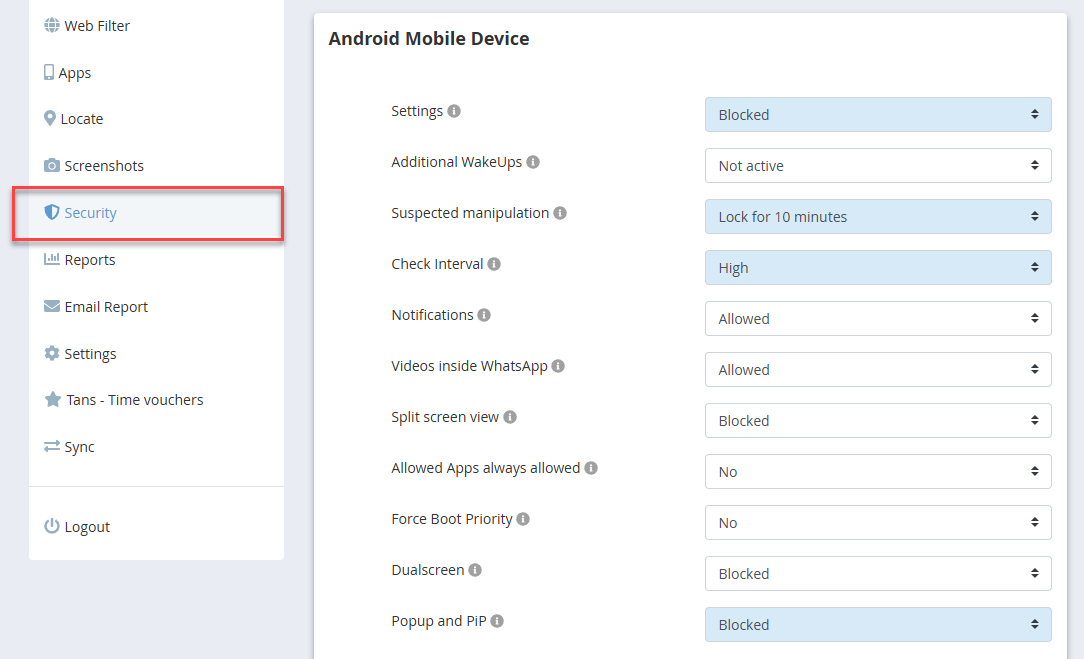
All of the following settings can be found under Web Portal > Security. Our recommendations (in order of importance) for this area are as follows:
Block popups
App content can be displayed as a “small window” over other apps. For example, YouTube can run
as a small window over an always-allowed (Allowed-PLUS) app. In the reports, you would then only
see the usage of the actually allowed app. Set the Popup/Picture-in-Picture option to “Blocked”
to prevent this small window display.
Settings (lock)
Through the Settings app on the child’s device, it is possible to remove certain permissions from
the Child Control app. If you frequently receive notifications that permissions are missing, set
the Settings option to “Blocked.”
Suspected manipulation
In some cases, the Child Control app can be bypassed by quickly switching between different
screens. Especially in connection with Allowed-PLUS apps, this can be used to gain additional
time. When “Suspicion of Manipulation” is active and the Child Control app detects certain
patterns, the device can be automatically blocked for a time specified by you.
Check interval
By default, the Child Control app checks the active foreground app every second and enforces any
existing limits. If the device is not a low-cost, low-performance child device, you can increase
the check interval to enhance security.
The Web Portal > Security section offers several settings to prevent or reduce the likelihood of manipulation.