
Time Codes #
Use this section to create Time Codes. A Time Code is a 6-digit number that can be used instead of the actual password for time extensions. Another advantage of Time Codes is that you can also give one to your child by phone or SMS, so that the child can extend a time limit on their own. Only extension times can be set with Time Codes. They do not replace the personal password for Child Control.
With Time Codes, you can choose between a normal Time Code and a Bonus Time Code. The difference is that a normal Time Code is not visible in the interface, meaning you must actively provide this number to your child so they can extend the time. Bonus Time Codes, on the other hand, can be accessed and redeemed by the child directly via the app interface. Bonus Time Codes are also used when you assign the bonus option to an Allowed Plus app.
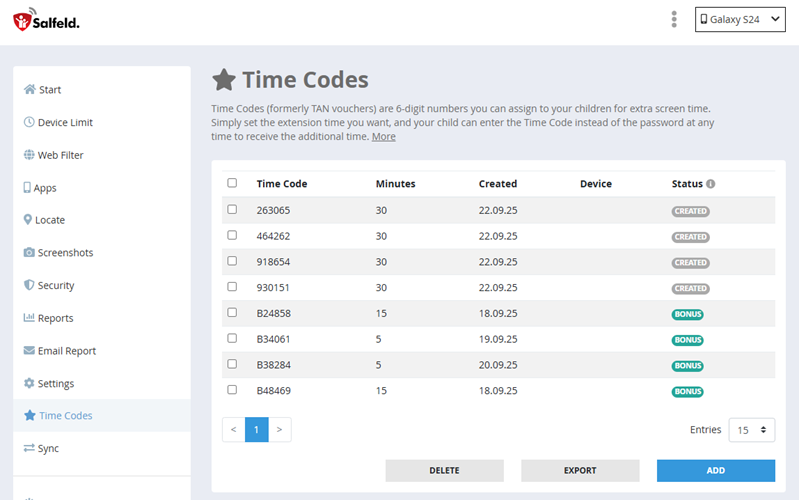
Each Time Code is assigned to a specific time limit, which you can enter under “minutes.” The “Add” button creates a new Time Code, while “Delete” removes all selected Time Codes from the list. Each Time Code can only be used once by each user. Also keep in mind the following notes on extension times:
- A Time Code is not bound to a specific user
- An extension applies to all active time limits
- An extension remains active even after a computer restart
- Each extension can be applied again (with a new Time Code)
- Each extension expires at midnight on the same day (adjustable in section Settings)
Time code(s) available offline #
Normally the Android app checks an entered time code through our server. So if the child’s device currently has no internet connection, your child cannot redeem a time code. With the option “Time code(s) available offline” you allow time codes to be checked and redeemed directly on the device without a connection as well. That is handy when you are out and about or abroad, for example.
Note on roaming: if the device belongs to a roaming group (several devices, one shared limit), the same time code may under certain circumstances be redeemed offline on several devices. In that case, use the option with care.
You will find the option in the Web Portal under Time Codes; it applies to Android devices. On Windows, time codes are always checked directly on the PC anyway and therefore work without an internet connection. For what else is possible without a connection, see the chapter Without Internet.